
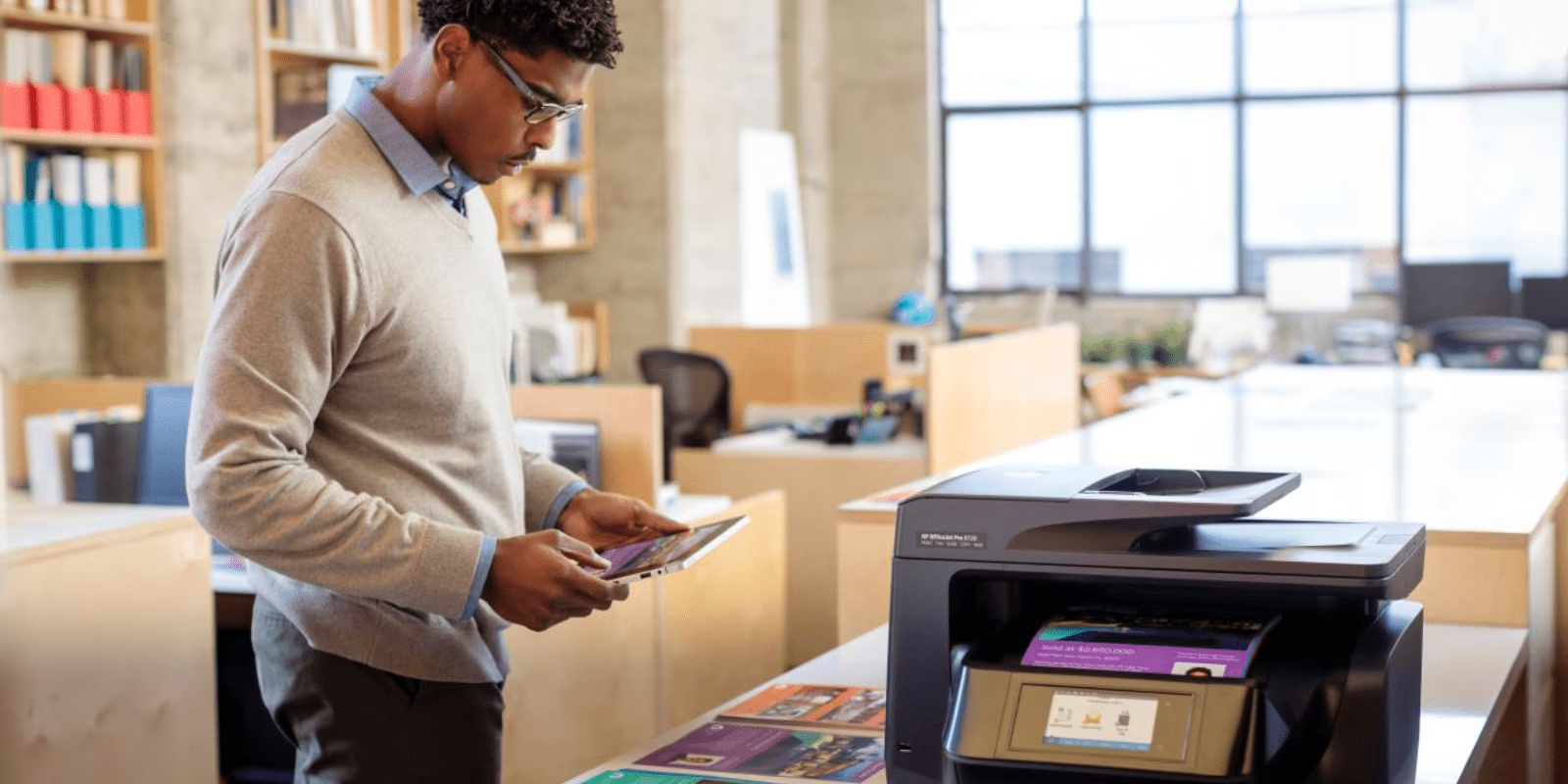
We have all been there. You need to print a return label, a school assignment, or a contract. You hit “Print,” and nothing happens. The printer sits there, silent and mocking you. Your computer says “Printer Offline.” You press buttons, you unplug cables, and you start to sweat because you are running out of time. For decades, printers have been the most frustrating piece of technology in our homes. They jam, they run out of ink at the worst moments, and they seem to lose their connection to the Wi-Fi whenever the wind blows.
But here is the good news: in 2026, setting up printers and other peripherals like webcams, scanners, and microphones is actually much easier than it used to be. The technology has finally caught up with our needs. We have moved away from the days of hunting for lost CD-ROMs and dealing with massive, tangled cables. Today, configuration is mostly wireless, automatic, and intelligent. However, “easier” does not mean “foolproof.” Manufacturers still try to trick you into installing unnecessary software, and security is a bigger concern than ever. This guide is going to walk you through the entire process of configuring your printers and peripherals. We will use simple, plain English to explain exactly how to get your devices talking to each other so you can stop fighting with your tech and start using it.
Unboxing and Physical Setup: The Foundation of Success
The configuration process begins the moment you open the box. It might sound silly, but physical setup is where most printer problems actually start. Printers are delicate machines filled with moving parts—rollers, gears, and print heads. To protect them during shipping, manufacturers use an excessive amount of blue or orange tape and plastic spacers.
You need to be a detective. Open every door, lift the scanner lid, pull out the paper tray, and look inside the ink cartridge access area. You will often find a piece of Styrofoam or a plastic clip hidden deep inside. If you turn the printer on without removing this, the gears will grind against it, making a horrible noise and possibly breaking the machine before you print a single page. Take your time. Remove every scrap of tape.
Next, think about placement. In 2026, almost all printers are wireless. This gives you freedom. You do not need to clutter your desk with a giant plastic box. You can put the printer on a bookshelf in the hallway, in a closet, or in the corner of the living room. The only requirement is that it must be within range of your Wi-Fi router. If you put it in a dead zone, it will constantly go offline. Plug it into a power outlet, turn it on, and follow the on-screen prompts to install the ink cartridges. Do not connect it to your computer yet. In fact, you might never need to connect a cable to it at all.
Connecting to Wi-Fi Without the Headache
The old way of setting up a printer involved plugging in a USB cable, installing a driver, and then configuring the Wi-Fi through the computer. The modern way is “Mobile-First.” Most printers in 2026 have a touchscreen or a small display. The easiest way to get online is to use that screen.
Go to the “Network” or “Wi-Fi” settings menu on the printer itself. Select “Wireless Setup Wizard.” It will search for your home network. Select your Wi-Fi name and type in your password. It is tedious to type a complex password on a tiny printer screen, but you only have to do it once. Once the printer says “Connected,” you have completed the hardest part of the job.
If your printer doesn’t have a screen, look for a button labeled “WPS” (Wi-Fi Protected Setup). Press the WPS button on your internet router, and then press the Wireless button on your printer within two minutes. They will find each other and shake hands automatically. If that fails, download the manufacturer’s app (like HP Smart, Canon PRINT, or Epson iPrint) on your phone. These apps use Bluetooth to find the printer and send the Wi-Fi password from your phone to the machine securely. This is often the fastest method because it bypasses the clumsy printer menus entirely.
The Era of Driverless Printing: AirPrint and Mopria
This is the most important secret of printer configuration in 2026: You usually do not need to install the manufacturer’s software on your computer. In the past, you had to download a 500MB package that included a photo editor, a shopping app for ink, and a bunch of drivers just to print a document. This “Bloatware” slows down your computer and causes conflicts.
Today, we have universal standards. Apple created “AirPrint,” and the rest of the world created “Mopria.” These technologies allow your computer to talk to the printer without a specific driver. On a Mac, just go to System Settings > Printers & Scanners and click “Add Printer.” Your Mac will see the printer on the Wi-Fi network. Click “Add,” and you are done. It uses AirPrint instantly.
On Windows 11 or 12, go to Settings > Bluetooth & devices > Printers & scanners. Click “Add device.” Windows will search the network, find your printer, and install it using a universal IPP (Internet Printing Protocol) driver. This keeps your computer clean. The only time you should ever install the full software package from the manufacturer’s website is if you have a very specific need, like using advanced color management for professional photography or configuring complex scanning workflows. For 99% of home users, the built-in tools are faster and more reliable.
Configuring Wireless Scanning to Your Phone and Cloud
Printing is putting ink on paper; scanning is getting paper onto your screen. In a world that is going paperless, a good scanner configuration is essential for digitizing receipts, tax documents, and old photos. The old way of scanning involved opening a program on your PC, hitting “Preview,” then hitting “Scan,” and then trying to find where the file was saved.
The better way to configure scanning in 2026 is to bypass the computer entirely. Use the manufacturer’s mobile app on your phone. Open the app, place the document on the printer glass, and tap “Scan” on your phone screen. The document appears on your phone instantly. From there, you can save it to Google Drive, email it, or text it to someone. It is much faster.
You can also configure “Scan to Email” or “Scan to Cloud” directly on the printer’s touchscreen. This requires a bit of setup—you have to log into your Google Drive or Dropbox account via the printer’s web interface—but once it is set up, it is magical. You just walk up to the printer, drop a stack of papers in the feeder, tap “Scan to Google Drive,” and walk away. The printer handles the rest, uploading a PDF directly to your cloud storage. This is perfect for home offices where you want to keep your digital life organized without cluttering your hard drive.
Setting Up High-Quality Webcams and Microphones
Printers aren’t the only peripherals we use. In the age of remote work, your webcam and microphone are your professional face and voice. Most laptops have built-in cameras, but they are often low quality. If you buy an external webcam (like a Logitech Brio or Razer Kiyo), configuration is key to looking good.
Plug the camera into a USB port. Windows and Mac will recognize it immediately. However, you need to configure the software to use it. Open Zoom, Teams, or Google Meet. Go to the Settings menu and look for “Video.” changing the input from “Integrated Camera” to your new “USB Webcam” is the first step.
But don’t stop there. Download the camera’s settings app (like Logi Tune). This allows you to adjust the “Field of View.” By default, many webcams are very wide, showing your messy room behind you. You can crop this in to just show your head and shoulders. You can also adjust the exposure and white balance so you don’t look like a ghost or a tomato. For microphones, the configuration is similar. Go to your Sound settings and ensure the “Input Volume” is set correctly. Test it. You want the meter to bounce into the green/yellow zone when you talk, but never hit the red (which causes distortion). A properly configured $50 microphone sounds better than an improperly configured $200 one.
Mastering Bluetooth Peripherals: Mice, Keyboards, and Headphones
We love wireless accessories, but Bluetooth can be finicky. The pairing process is often where people get stuck. The golden rule of Bluetooth configuration is “Pairing Mode.” You cannot just turn a device on and expect your computer to see it. You have to tell the device to broadcast its signal.
On most mice and keyboards, this involves holding down a button for three to five seconds until a light starts flashing rapidly. Once the light is flashing, then you go to your computer’s Bluetooth settings and click “Add Device.” If you try to add it before the light is flashing, the computer will never find it.
Once paired, check the battery settings. In Windows and macOS, you can usually see the battery percentage of your Bluetooth devices in the settings menu. Configure an alert if possible. There is nothing worse than your mouse dying in the middle of a presentation. If you are a gamer, you might have a mouse that uses a “2.4GHz Dongle” instead of Bluetooth. Always use the dongle if you can. It provides a faster, lower-latency connection than Bluetooth, which is crucial for gaming. Bluetooth is for convenience; dongles are for performance.
Configuring External Monitors and Docking Stations
If you work from home, you probably use a second monitor. Configuring dual screens can drastically improve your productivity. In 2026, the standard connector is USB-C or HDMI. Plug the monitor into your laptop. The screen might look weird at first—either mirroring your laptop or showing the wrong resolution.
You need to configure the “Display Arrangement.” In Windows, right-click the desktop and select “Display Settings.” You will see two boxes labeled 1 and 2. Drag them around to match the physical layout of your desk. If your monitor is on the left, drag box 2 to the left of box 1. This ensures that when you move your mouse across the edge of the screen, it jumps to the other monitor naturally.
Also, check the “Scale” settings. If you have a 4K monitor, the text might look tiny. Windows often defaults to 150% scaling, which makes text readable. You can adjust this to fit more windows on the screen or to make text larger for easier reading. If you use a “Docking Station” (a hub that connects your monitor, mouse, keyboard, and power all with one cable), ensure you install the “DisplayLink” drivers if required. Some docks won’t show video until this specific software is running.
Securing Your Peripherals: Passwords and Firmware
We don’t often think of printers as security risks, but they are computers. They have hard drives, operating systems, and internet connections. If you don’t secure them, hackers can use them as a backdoor into your network.
The first step in printer security configuration is changing the default password. Every printer has a web interface. You can access it by typing the printer’s IP address into your browser. The default login is usually “admin” and the password is “password” or blank. Change this immediately. If you leave it default, a neighbor or a malicious script could take control of your printer and print thousands of pages of junk or steal your scanned documents.
You should also check for “Firmware Updates.” Just like your phone updates its software, your peripherals do too. These updates fix bugs and patch security holes. Most modern devices have an “Auto-Update” feature in their settings menu. Turn it on. This ensures your webcam, your router, and your printer are always running the safest code without you having to think about it.
Troubleshooting: When the Printer Goes “Offline”
Even with a perfect configuration, printers will inevitably go “Offline.” It is the curse of the technology. When this happens, do not panic. Do not reinstall the drivers immediately. That is the nuclear option.
First, try the “Power Cycle Dance.” Turn off the printer. Then, turn off your Wi-Fi router (unplug it). Wait thirty seconds. Plug the router back in and wait for the internet to come back. Then, turn the printer on. This forces the two devices to re-introduce themselves and establish a fresh connection. This fixes 90% of “Offline” errors.
If that fails, check the “Print Spooler” on your computer. The spooler is a temporary holding area for documents waiting to be printed. Sometimes, a corrupt document gets stuck in there, blocking everything behind it like a traffic jam. In Windows, search for “Services,” find “Print Spooler,” right-click it, and select “Restart.” This clears the jam. Finally, check your network. If you changed your Wi-Fi password recently, your printer doesn’t know the new one. You will have to go back to the printer’s physical menu and run the Wireless Setup Wizard again to reconnect it.
Conclusion: A Connected, Efficient Workspace
Configuring your printers and peripherals is about creating a workspace that flows. When your webcam looks clear, your mouse connects instantly, and your printer works from the other room without a cable, you remove the friction from your work day. You stop fighting the tools and start using them to create.
By following the modern standards—using Wi-Fi instead of cables, using built-in AirPrint instead of bloatware, and securing your devices with strong passwords—you build a setup that is robust and reliable. Technology in 2026 is designed to be helpful. With a little bit of patience during the initial setup, you can ensure that your devices serve you faithfully, turning your home office into a productivity powerhouse.