
If you have recently switched from a Windows computer to a Mac, or even if you have been using an Apple computer for a while, you might have noticed something strange. Installing software on a Mac feels very different. There are no “Setup Wizards” that pop up instantly. You don’t have to click “Next, Next, Next” ten times just to get a program to open. Sometimes, you download a file, and it just sits there on your desktop looking like a white hard drive icon. It can be confusing at first because it is so simple that we overthink it.
The truth is that macOS handles software in a way that is designed to be cleaner and safer than Windows. It treats applications like physical objects that you can pick up and move around, rather than messy collections of files scattered all over your hard drive. However, because it is different, it can lead to frustration. You might double-click a file and get a scary warning about an “Unidentified Developer.” You might try to delete an app and wonder why it is still taking up space. This guide is going to walk you through every single method of installing and managing software on your Mac. We will use simple, plain English and avoid the technical jargon. By the time you finish reading, you will understand exactly how your Mac thinks, and you will be able to install any app with total confidence.
The App Store: The Safest and Easiest Place to Start
The absolute easiest way to install software on a Mac is through the Mac App Store. If you have an iPhone or an iPad, this will feel immediately familiar to you. Apple has built a walled garden where every single app is reviewed by a human being before it is allowed in. This means that it is almost impossible to accidentally download a virus or a fake app from the Store.
To use it, look for the blue icon with the white “A” in your Dock (the bar of icons at the bottom of the screen). Open it and use the search bar to find what you need. You will find massive apps like Microsoft Word, creative tools like DaVinci Resolve, and fun utilities like Todoist. When you find the app, you will see a button that says “Get” or the price of the app. Click it.
Your Mac will likely ask you to confirm. If you have a newer MacBook with a fingerprint sensor (Touch ID), you just rest your finger on the key. If you have Face ID, glance at the screen. The icon will fly down into your Dock and a little loading circle will appear. That is it. The app is installed. You don’t have to choose a folder. You don’t have to agree to a license. It just works. Plus, the App Store handles updates automatically in the background, so you never have to worry about running an old, insecure version. For 90% of users, this is the only method you need.
Understanding DMG Files: The Digital Disk Image
Eventually, you will want an app that isn’t in the App Store. Maybe you want Google Chrome, Zoom, or Spotify. When you go to their websites and click “Download for Mac,” you usually get a file ending in “.dmg”. This stands for “Disk Image.” This concept confuses almost everyone at first, so let’s use an analogy.
Think of a DMG file like a digital lunchbox. The application you want is the sandwich inside the lunchbox. When you double-click the DMG file, you aren’t running the app yet. You are “opening the lunchbox.” You will see a new icon appear on your desktop that looks like a white hard drive. A window will pop up showing the app’s icon and usually a shortcut to your Applications folder.
This is a virtual disk. Your Mac thinks you just plugged in a USB drive. The app is sitting on that virtual drive. Many people make the mistake of running the app directly from this window. If you do that, the app will work, but the next time you restart your computer, the virtual drive will be gone, and the app will disappear! You have to take the sandwich out of the lunchbox to keep it. This leads us to the most important skill in the Mac world: the drag and drop.
The Drag-and-Drop Magic: Installing Apps Without Wizards
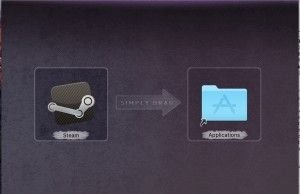
When that window pops up after you open a DMG file, you will usually see the logo of the app (let’s say, Google Chrome) and a folder icon labeled “Applications.” There is often a little arrow pointing from the app to the folder. This is a visual instruction manual. The developer is telling you: “Drag this icon into this folder.”
Click and hold the app icon. Drag it over to the Applications folder icon. Let go. You will hear a tiny sound or see a progress bar for a few seconds. That is the actual installation. You are physically copying the program from the temporary “lunchbox” onto your computer’s real hard drive.
Once that copy is finished, you are done. You can close the window. Now, look at your desktop. You still have that “Lunchbox” (the white drive icon) there. You don’t need it anymore. You have eaten the sandwich. Right-click on that drive icon and select “Eject,” or simply drag it to your Trash can (which will turn into an Eject symbol). Now, you can delete the original .dmg file from your Downloads folder too. To open your new app, just go to your “Launchpad” (the rocket ship icon) or open your Applications folder in Finder.
When to Use PKG Installers: The Windows-Style Setup
Sometimes, you won’t get a DMG file. You will get a file ending in “.pkg”. This stands for “Package.” These are used for more complex software that needs to install things deep inside your system, like printer drivers, antivirus software, or Microsoft Office.
A PKG file acts very much like a Windows installer. When you double-click it, it doesn’t just open a window; it launches a dedicated program called “Installer.” You will see a series of screens. Introduction. License. Destination Select. Installation Type.
You will have to click “Continue” a few times. You will have to click “Agree” to the terms and conditions. Finally, it will ask for your Mac’s password (or your fingerprint). This is because the software is asking for permission to change the core files of your operating system. Once you type your password, it will run scripts, move files, and register the software. When it says “The installation was successful,” you can close the window. It might even ask, “Do you want to move the installer to the Trash?” You can say yes. This keeps your Downloads folder clean.
Bypassing Gatekeeper: Installing Apps from “Unidentified Developers” Safely
Apple is very protective of its users. It has a security system called “Gatekeeper.” By default, your Mac will only allow you to install apps from the App Store or from “Identified Developers” (companies that have paid Apple a fee and passed a security check).
Sometimes, you might find a fantastic little tool made by a hobbyist or an open-source project. When you try to open it, your Mac will flash a scary warning: “App can’t be opened because it is from an unidentified developer.” It sounds like you have a virus, but usually, you don’t. It just means the creator didn’t pay Apple for a certificate.
If you are 100% sure the software is safe (you downloaded it from a reputable open-source site like GitHub), you can bypass this. Go to System Settings > Privacy & Security. Scroll down to the Security section. You will see a message saying “App was blocked from use.” Click the button that says “Open Anyway.”
There is an even faster shortcut. Find the app icon in your Finder. Instead of double-clicking it, hold down the Control key on your keyboard and click it (or right-click). Select “Open” from the menu. You will get the same warning, but this time there will be an “Open” button available. This is your way of telling the Mac, “I know what I am doing, trust me.”
Keeping Your Apps Updated: The Key to Security
Installing the app is only the first step. To keep your Mac running fast and safe, you need to keep those apps updated. Outdated software is the number one way hackers get into computers.
For apps you downloaded from the App Store, this is easy. The App Store handles it automatically. You might see a red notification badge on the App Store icon every once in a while. Just open it and click “Update All.”
For apps you downloaded from the web (like Chrome or Zoom), they usually update themselves. When you open the program, it checks with its home server. If there is a new version, it will pop up a message saying “Update Available.” Always click “Install and Relaunch.” Some apps, like web browsers, do this silently in the background so you never even notice. If you are ever unsure, most apps have a “Check for Updates” button in the menu bar at the top of the screen (usually under the app’s name).
The Art of Uninstallation: Deleting Apps the Right Way
Deleting apps on a Mac is oddly satisfying, but it can be deceptive. The standard method is to open your “Applications” folder in Finder, find the app you don’t want, and drag it to the Trash can. Then, right-click the Trash and select “Empty Trash.” Poof. It is gone.
For simple apps, this is perfectly fine. However, larger apps (like Adobe Creative Cloud or complex games) often leave “leftovers.” These are tiny preference files, cache folders, and support documents hidden deep in your system library. Over time, these leftovers can clog up your storage.
To truly delete everything, I recommend using a small free utility called AppCleaner. You open AppCleaner, and then you drag the app you want to delete into its window. It doesn’t just see the app; it hunts down every single file associated with that app scattered across your hard drive. It lists them all and lets you delete the whole bundle in one click. It keeps your Mac as clean as the day you bought it. If an app came with a PKG installer (like an antivirus), it often comes with a specialized “Uninstaller” tool in its folder. Use that if it exists, as it runs a script to cleanly remove those deep system files.
Homebrew: The Secret Weapon for Power Users
If you are feeling brave, or if you are a developer, there is a “secret” way to install software that is faster than anything else. It is called Homebrew. It is often called “The missing package manager for macOS.”
Homebrew works through the Terminal (that black box with white text that looks like The Matrix). It sounds scary, but it is incredibly simple. You install Homebrew by pasting one line of code into your Terminal. Once it is installed, you never have to go to a website to download an app again.
Let’s say you want to install Firefox. Instead of opening Safari, Googling Firefox, finding the download page, downloading the DMG, opening the DMG, and dragging the icon… you just open your Terminal and type: brew install --cask firefox. That is it. Homebrew goes out, finds the official file, downloads it, and installs it in your Applications folder. You can even update every single app on your computer by typing brew upgrade. It is a superpower for people who love efficiency, and once you get used to it, the regular way feels painfully slow.
Troubleshooting Common Installation Errors
Even on a Mac, things sometimes go wrong. The most common error is the “Corrupted” message: “This app is damaged and can’t be opened. You should move it to the Trash.”
99% of the time, the app is not actually damaged. This is usually a Gatekeeper bug. Your Mac’s security system got confused and decided the file was scary, so it “broke” it to protect you. The first fix is to simply delete it and download it again. Sometimes a tiny glitch in the download causes this.
If that doesn’t work, check your clock. If your Mac’s date and time are incorrect, the security certificates for the app will look “expired” to the computer, and it will block the installation. Go to System Settings > General > Date & Time and make sure “Set time and date automatically” is turned on.
Finally, ensure you are downloading the right version for your chip. Macs now come in two flavors: Intel (the older ones) and Apple Silicon (M1, M2, M3, M4 chips). Many download sites will ask you which one you have. If you have an M2 MacBook Air and you try to install the “Intel” version of an app, it might crash or fail to install. To check what you have, click the Apple Logo in the top left corner, select “About This Mac,” and look at the “Chip” line. Always download the version that matches your hardware.
Conclusion: Simplicity is the Ultimate Sophistication
Installing software on a Mac is designed to be invisible. Apple doesn’t want you to think about “installing“; they want you to think about “using.” That is why they use metaphors like the App Store and the Drag-and-Drop. It mimics real life. You pick up a tool, you put it on your workbench, and you start working.
It requires a shift in mindset if you are coming from the Windows world of wizards and registries. But once you master the rhythm—download, drag, drop, eject—you will find it to be a much faster and more pleasant experience. You stop worrying about where the files are going and start focusing on what you can create with them. So go ahead, download that new creative tool or that productivity app. Your Mac is ready for it.