
Most people do not think about backup and cloud storage until something goes wrong. A laptop falls. A phone gets stolen. A hard drive makes a terrible sound and stops responding. And in that moment, they discover whether their files existed in one place or in multiple places. The people who backed up their data feel relieved. The people who did not feel something much worse.
Data loss is not an unlikely event. Hard drives fail. Phones get lost. Devices get damaged by water, heat, or simple accidents. Files get accidentally deleted. Ransomware encrypts everything and demands payment. These things happen to real people every day and the consequences range from losing a few recent photos to losing years of work documents, financial records, personal memories, and everything in between.
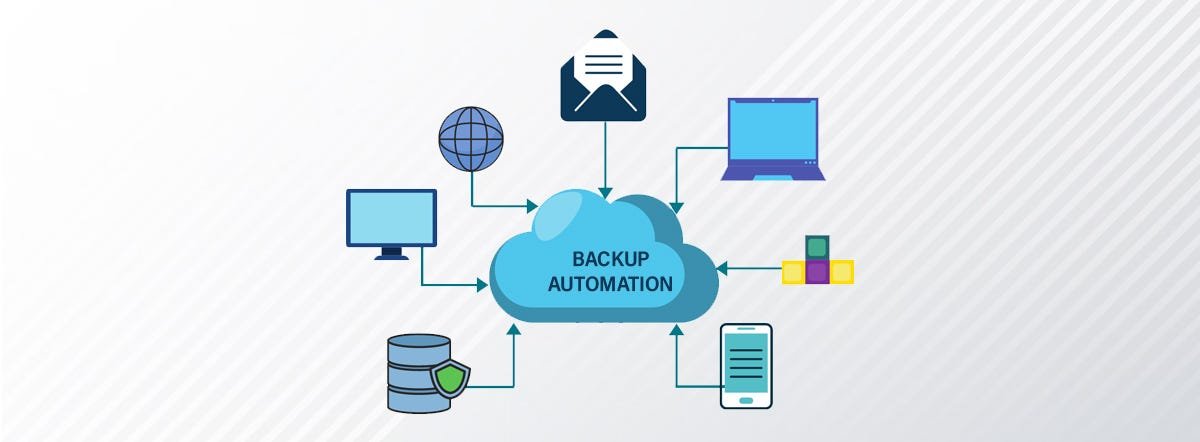
The protection against all of this is genuinely simple. It involves setting up cloud storage and backup systems that run automatically in the background without requiring you to remember to do anything. Once they are set up properly, they just work. Your files exist in multiple places simultaneously and if any one of those places fails, the others remain intact.
This blog is going to walk you through everything you need to understand about cloud storage and backup setup. What the difference between cloud storage and backup actually is, which services are worth using, how to set everything up properly, and how to build a system that protects your data completely without creating a complicated ongoing maintenance burden. All of it in plain, practical language.
Understanding the Difference Between Cloud Storage and Backup
Before we get into specific services and setup steps, it helps to be clear about the difference between cloud storage and backup because they are different things that serve different purposes, and confusing them leads to gaps in protection.
Cloud storage is a service that keeps your files in the cloud and syncs them across your devices. Services like Google Drive, Dropbox, and iCloud are cloud storage services. When you save a file to your Google Drive folder on your laptop, it uploads automatically to Google’s servers and becomes available on your phone, your tablet, and any other device linked to the same account. Cloud storage is primarily about accessibility and convenience. It means your files are available everywhere and are not tied to any single device.
The important thing to understand about cloud storage is that it is not the same as backup. If you accidentally delete a file from your Google Drive folder, it deletes from the cloud too. If you accidentally overwrite a file with the wrong version, the overwritten version syncs to the cloud. Cloud storage mirrors what is on your device. It does not protect you from your own actions or from software that modifies or deletes files.
Backup is a separate copy of your data that is stored somewhere different and that does not change automatically when your main files change. A backup captures the state of your files at a specific point in time. If you accidentally delete something, you can go back to the backup and retrieve the version that existed before the deletion. If ransomware encrypts all your files, you can restore from a backup taken before the infection. The defining characteristic of a backup is that it is independent of your current files and protected from the changes and accidents that happen to them.
Good data protection uses both. Cloud storage for accessibility and convenience across devices, and proper backup for protection against accidents, hardware failure, and malicious software. Together they provide a level of protection that neither offers alone.
The 3-2-1 Backup Rule: The Simple Framework That Works
The most widely recommended framework for data protection is the 3-2-1 rule. It is simple to remember and comprehensive in what it covers.
The three means keeping three copies of your data. Your original files plus two additional copies. The two means storing those copies on two different types of media or storage. For example, your original files on your laptop plus a copy on an external hard drive plus a copy in the cloud. The one means having at least one copy stored offsite, meaning in a different physical location from your primary device.
Why does the offsite copy matter? Because physical disasters, fires, floods, burglaries, and other events that damage or destroy a physical space affect everything in that space simultaneously. If your laptop and your external hard drive are both at home and your home burns down, both copies are gone together. A cloud backup stored in a remote data centre survives that event intact.
Implementing the 3-2-1 rule does not require expensive equipment or complicated setup. Your original files on your device, an automatic cloud backup service, and a periodic backup to an external drive that you store somewhere other than your primary location covers all three requirements.
Cloud Storage Services: Which One to Choose
There are several major cloud storage services available and choosing between them depends primarily on which devices you use and which other services you are already embedded in.
Google Drive comes with every Google account and offers 15 gigabytes of free storage shared across Drive, Gmail, and Google Photos. The Google One paid plans expand this storage from 100 gigabytes upward at very reasonable prices. Google Drive integrates seamlessly with Google Docs, Sheets, and Slides for document creation and editing. For Android users and people who are already in the Google ecosystem, Drive is the natural choice because it is already present and everything connects.
Microsoft OneDrive is built into Windows 10 and Windows 11 and comes with every Microsoft account. It offers 5 gigabytes free with paid plans through Microsoft 365 offering significantly more storage bundled with the Office apps. For Windows users and anyone who uses Microsoft Office regularly, OneDrive is already part of the system and requires minimal setup to make work properly. Files on your desktop, documents folder, and pictures folder can be automatically backed up to OneDrive through a simple settings change.
Apple iCloud is the natural choice for iPhone, iPad, and Mac users. iCloud provides 5 gigabytes free with paid plans available for more storage. What makes iCloud particularly valuable for Apple device users is how deeply it integrates with the operating system. Photos, contacts, messages, health data, app data, and device backups all flow through iCloud automatically when configured correctly. The seamless experience across Apple devices is a genuine advantage for people who use only Apple products.
Dropbox was one of the original cloud storage services and remains popular for its reliability and its excellent desktop sync client. The free plan is limited to 2 gigabytes, which is quite small, so Dropbox works best for users on a paid plan. Its strength is in cross-platform support and file sharing features that make it popular in professional environments.
For most individual users, picking one of the first three options based on their primary device ecosystem and sticking with it is the right approach. You do not need multiple cloud storage services running simultaneously.
Setting Up Cloud Storage Properly
Once you have chosen your cloud storage service, setting it up correctly takes only a few minutes but makes a significant difference to how well it protects you.
Install the desktop application for your chosen service rather than relying only on the browser interface. The desktop app creates a sync folder on your computer and automatically uploads any files you save to that folder. This is what makes cloud storage genuinely automatic rather than something you have to actively manage.
Configure which folders you want to sync. Most cloud storage apps allow you to choose specific folders to sync rather than syncing everything, which is useful if your device does not have enough free space to hold everything locally. Your documents folder, pictures, and any project folders you are actively working on are the important ones.
Enable photo backup specifically because photos are often the files people most regret losing and they are easy to protect completely. Google Photos offers unlimited storage for photos and videos at slightly compressed quality on its free tier. Both iCloud Photos and OneDrive can automatically back up your phone’s camera roll whenever you are on WiFi. Setting up automatic photo backup on your phone is one of the highest-impact data protection steps available.
Check that sync is actually working after setup. Look in the sync folder on your computer and confirm that files you save there appear in the cloud interface through a browser. Seeing your files appear confirms the connection is working. Checking the storage usage in your cloud account settings tells you how much of your storage allowance is being used and whether you need to upgrade.
Setting Up Proper Backup
Beyond cloud storage, setting up a proper backup system provides the version history and full system recovery capability that cloud storage alone does not offer.
For Windows users, File History is a built-in backup feature that automatically saves versions of files in your libraries and on your desktop to an external drive or a network location. Once set up, it saves a new version of each file every hour, which means you can recover from accidental deletion or overwriting by going back to any previous version. Enabling File History takes about five minutes through the Windows Settings backup section and requires an external drive to store the backups.
Windows Backup, also available in Settings, goes further by creating a complete system image that can restore your entire computer to a working state if your hard drive fails completely. This is the comprehensive protection layer that allows full recovery from hardware failure rather than just file recovery.
For Mac users, Time Machine is Apple’s built-in backup system and it is excellent. Connect an external drive, tell Time Machine to use it as your backup destination through System Preferences, and Time Machine begins taking hourly snapshots of your entire system automatically. It keeps hourly backups for the past day, daily backups for the past month, and weekly backups for as long as the drive has space. Recovery from Time Machine is straightforward and can restore individual files, entire folders, or your complete system.
For cloud-based backup as an alternative or addition to local backup, services like Backblaze offer continuous automatic backup of your entire computer to the cloud for a reasonable monthly fee. Backblaze runs in the background, automatically backing up new and changed files, and allows you to restore individual files or your entire system through their service. For people who want offsite backup without managing an external drive and storing it in a separate location, Backblaze is a highly regarded option.
Mobile Device Backup: Do Not Overlook Your Phone
Smartphones hold enormous amounts of important data including contacts, messages, photos, app data, and documents. Many people back up their computers but never think about their phones until they are lost or damaged.
For iPhones, iCloud Backup creates a complete backup of your device automatically when it is connected to power and WiFi. Enable this through Settings, your name, iCloud, iCloud Backup. You can also back up to a computer through iTunes or Finder for a local backup that does not count against your iCloud storage. Having both an iCloud backup and a periodic computer backup covers your phone comprehensively.
For Android devices, Google’s backup system automatically backs up app data, call history, contacts, device settings, and SMS messages to your Google account. Enable this through Settings, System, Backup. Photos and videos need Google Photos backup enabled separately through the Google Photos app settings. Samsung devices also have Samsung Cloud as an additional backup option for Samsung-specific data.
Verify that your phone backups are actually working by checking the backup status in your settings. The date of the last successful backup tells you whether the system is running properly.
Organising Your Files to Make Backup More Effective
A backup system works best when your files are organised in a way that makes it easy to include everything important without backing up large amounts of unnecessary data.
Keep all important files in clearly named folders within your documents directory or your cloud sync folder rather than scattered across your desktop, downloads folder, and various random locations. A simple folder structure with clear names for different categories of files makes both backup and retrieval straightforward.
Regularly clear out your downloads folder because it tends to accumulate large amounts of files that are not important and do not need to be backed up. Old installation files, temporary downloads, and documents you already dealt with can be deleted to keep storage usage reasonable.
Be aware of where applications store their data. Some applications save important data outside your documents folder in locations that are not always included in standard backup configurations. For important applications, knowing where their data is stored and ensuring those locations are included in your backup scope prevents gaps in your protection.
Testing Your Backup: The Step Most People Skip
A backup that has never been tested is a backup of unknown reliability. Testing your backup once or twice a year by actually restoring a file confirms that the system is working correctly and that you know how to use it when you need it.
Pick a file you do not need, delete it from its original location, and then restore it from your backup. If the restoration works correctly, your backup is functional. If it does not work or if you cannot figure out how to do the restoration, you have discovered a problem while it is still low-stakes rather than in the middle of a genuine data loss event.
For Time Machine on Mac, right-clicking a folder and choosing Restore Previous Versions shows you the backup history for that location. For Windows File History, right-clicking a file and choosing Restore Previous Versions does the same. Testing these features when you are not under pressure makes using them under pressure much easier.
Conclusion
Cloud and backup setup is one of those things that takes a small amount of time to do properly and provides protection for an enormous amount of what matters digitally in your life. The hour or two you invest in setting this up correctly is insurance against events that could otherwise mean losing years of photographs, documents, work files, and personal records.
The steps are clear and manageable. Choose a cloud storage service appropriate for your devices and set it up to sync your important folders automatically. Enable automatic photo backup on your phone. Set up Windows File History or Mac Time Machine with an external drive for local backup. Consider a cloud backup service like Backblaze for comprehensive offsite protection. Enable backup on your mobile devices. Test your backup system once to confirm it works.
None of this requires technical expertise. It requires only the willingness to spend a couple of hours now to avoid a much larger problem later.
Your data represents something real and irreplaceable. Your family photos, your work documents, your personal records, and your memories deserve to exist in more than one place. Setting that up is one of the most straightforward and most valuable things you can do for your digital life.
Do it this week. Your future self will be genuinely grateful.