
We have all experienced that moment of pure frustration. You are sitting down to watch a movie after a long day at work, you have your snacks ready, and you hit play. But instead of the movie starting, you see a spinning circle in the middle of the screen. Buffering. Or maybe you are in the middle of a critical video call with your boss, and suddenly their face freezes while the audio turns into robotic gibberish. In 2026, the internet is not just a luxury like cable TV used to be; it is a utility as essential as electricity or running water. It connects our phones, our televisions, our home security systems, and even our refrigerators. When the network goes down or slows to a crawl, modern life basically grinds to a halt.
The natural reaction for most people is to blame their Internet Service Provider (ISP). We call them up, wait on hold for an hour, and complain that we aren’t getting the speeds we paid for. But here is the secret that technicians know: most of the time, the problem isn’t the signal coming into your house. The problem is how that signal is being managed inside your house. You can pay for the fastest fiber optic plan in the world, but if your router is shoved in a drawer or your settings are configured incorrectly, you will still have a terrible experience. Network configuration sounds like something only a computer engineer should touch, but it is actually quite simple. It is about logic and physics. By taking the time to configure your network properly, you can banish dead zones, stop the buffering, and make your home internet bulletproof. This guide is going to walk you through the essential steps of network configuration using simple, plain English so you can take control of your digital life.
Understanding the Difference Between Modems and Routers
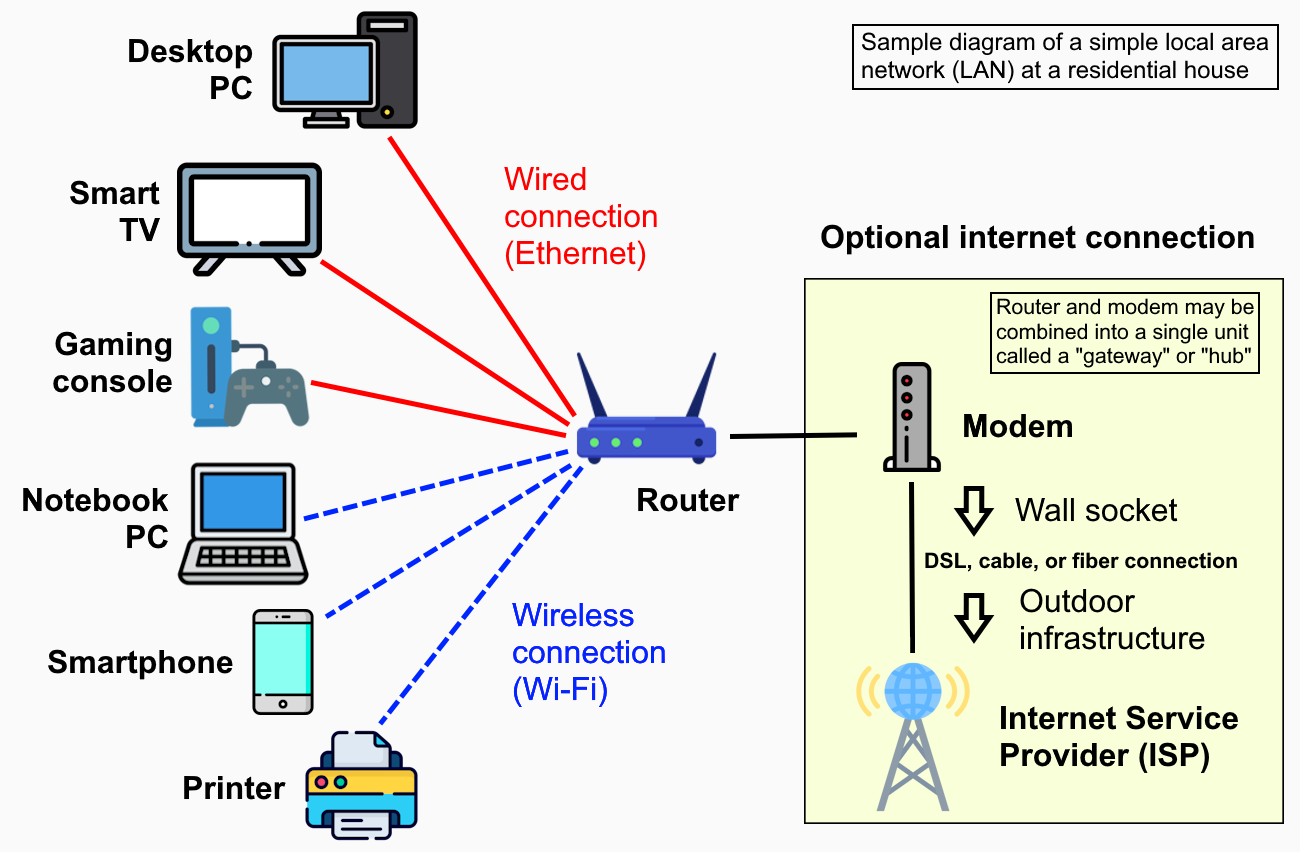
Before you can fix your network, you need to understand the boxes that run it. In a typical home setup, there are two distinct jobs that need to be done. The first job is bringing the internet signal from the street into your home. This signal travels over a coaxial cable, a fiber optic glass line, or sometimes a satellite dish. The device that translates this raw signal into digital data your home can understand is called the Modem. Think of the modem as the front door. It is the entry point.
The second job is distributing that internet to all your devices. Your phone, your laptop, and your smart bulb cannot all plug into the modem at once. They need a traffic cop to manage the data and send it wirelessly through the air. This is the Router. The router takes the internet from the modem and creates a Wi-Fi bubble around your house. It assigns an address to every device so that when you request a website on your phone, the data comes to your phone and not to your printer. In many cases, your ISP will give you a single box that does both jobs. This is called a Gateway. While Gateways are convenient, they are often “jack of all trades, master of none.” For the best configuration, many experts recommend putting your Gateway into “Bridge Mode” (which turns off its router features) and connecting a high-quality standalone router. This gives you much more control over your settings and usually provides a stronger, faster Wi-Fi signal.
Mastering Router Placement for Maximum Signal
If you take only one thing away from this guide, let it be this: location is everything. Wi-Fi signals are radio waves, very similar to the music coming from a car radio or the light from a lightbulb. These waves travel out from the router’s antennas in all directions. However, they are surprisingly fragile. They struggle to pass through solid objects like metal, concrete, and water.
Many people make the mistake of hiding their router because it is an ugly plastic box with blinking lights. They stuff it inside a TV cabinet, put it behind a stack of books, or hide it in the corner of the basement near the fuse box. This is the worst thing you can do for your speed. If you put your router inside a wooden cabinet, you are immediately blocking a huge chunk of your signal. If you put it next to a fish tank, the water will absorb the radio waves before they can reach your phone. If you put it in the kitchen, the metal in your fridge and microwave will act like a shield.
For the best possible configuration, your router needs to be the center of attention. It should be placed in a central location in your home, preferably high up on a shelf or mounted on the wall. Radio waves travel out and down, like water from a showerhead. Placing a router on the floor is like installing a showerhead at your ankles. Put the router in your living room or hallway. The fewer walls the signal has to pass through to reach your devices, the faster your internet will be. Just moving your router five feet out from behind a TV can sometimes double your speed without changing a single setting.
Choosing the Right Frequency: 2.4GHz vs 5GHz
When you log into your router’s settings or look at the available networks on your phone, you will often see two options that look similar. They might be named “Home-WiFi-2.4” and “Home-WiFi-5G.” These are different frequency bands, and knowing which one to configure for which device is the key to a smooth network.
Think of the 2.4GHz band as a country road. It is narrow and the speed limit is low, but it goes a long way. The radio waves in this band are long, which means they are very good at punching through walls and floors. If you are in the backyard or the furthest bedroom, this is the network you should use. However, because this is an old standard, the road is crowded. Your microwave, your baby monitor, and your neighbor’s router all use this same road. It is prone to traffic jams and interference.
The 5GHz band is a superhighway. It has many lanes and a high speed limit. It is incredibly fast and perfect for streaming 4K movies or playing video games. However, the radio waves are short. They struggle to travel through thick walls. If you are in the same room as the router, you should always be on the 5GHz network. In 2026, we also have the 6GHz band (Wi-Fi 6E and Wi-Fi 7). This is like a dedicated express lane for the newest devices. When configuring your devices, put high-performance gadgets like laptops, tablets, and gaming consoles on the 5GHz or 6GHz bands. Put your slow, simple devices like smart plugs, thermostats, and printers on the 2.4GHz band. This separates the traffic and ensures your fast devices aren’t stuck behind a slow printer.
Changing Wi-Fi Channels to Avoid Interference
If you live in an apartment building or a dense neighborhood, your Wi-Fi is fighting a war. Every router broadcasts on a specific “Channel.” In the 2.4GHz band, there are only three non-overlapping channels: 1, 6, and 11. If you and your next-door neighbor are both on Channel 6, your signals will crash into each other. It is like trying to have a conversation while someone else is shouting in your ear. This causes interference, which leads to slow speeds and dropped connections.
Modern routers try to pick the best channel automatically, but they aren’t perfect. They often just pick the default one and stay there. You can do better. Download a free “Wi-Fi Analyzer” app on your phone. It will show you a graph of all the Wi-Fi networks around you. Look for the empty space. If everyone else is on Channel 6, you should configure your router to use Channel 1 or 11.
To change this, you need to log into your router’s admin panel. Look for a sticker on the bottom of the router with a web address (like 192.168.1.1) and a password. Type that into your browser. Go to “Wireless Settings” and find the “Channel” option. Change it from “Auto” to the specific number you found. This puts your Wi-Fi in a clear lane, away from the noise of your neighbors. It is a simple tweak that costs nothing but can dramatically improve your connection stability.
Securing Your Network with Strong Encryption
Your home network is a digital castle, and you need to lock the gate. The default settings on most routers are not secure enough. When you first set up your router, the very first thing you must do is change the administrator password. This is not the Wi-Fi password you share with friends; this is the password used to log into the router’s settings menu. If you leave it as “admin/password,” a hacker can easily take control of your network, change your settings, and even redirect your banking traffic.
Next, you need to configure your Wi-Fi security mode. Look for “WPA3” in the wireless security settings. This is the modern security standard that makes it extremely difficult for anyone to guess your password. If you have older devices that don’t support WPA3, you can choose “WPA2/WPA3 Mixed Mode.” Avoid “WEP” or “WPA” at all costs, as these are old standards that can be cracked in minutes by a teenager with a laptop.
You should also disable a feature called “WPS” (Wi-Fi Protected Setup). This is the feature where you press a button on the router to connect a device without typing a password. While convenient, it has a major security flaw that allows hackers to brute-force their way into your network. Go into your router settings and turn WPS off. It is slightly less convenient for you, but it makes your network much harder to break into.
The Phonebook of the Internet: Optimizing DNS Settings
When you type “” into your browser, your computer doesn’t actually know where that website is. Computers only understand numbers, like IP addresses (e.g., 142.250.190.46). To translate the human name “Google” into the computer number, your computer asks a “DNS Server.” DNS stands for Domain Name System. It is the phonebook of the internet.
By default, your router uses the phonebook provided by your Internet Service Provider (ISP). These ISP phonebooks are often slow, outdated, and sometimes they even track which websites you visit to sell that data to advertisers. If your internet feels “laggy”—like there is a long pause before a website starts loading—it is usually a bad DNS server.
You can fix this for free by configuring your router to use a public DNS. The two most popular and fastest ones are Google (8.8.8.8) and Cloudflare (1.1.1.1). In your router settings, look for “WAN” or “Internet” settings. You will see fields for “Primary DNS” and “Secondary DNS.” Enter 1.1.1.1 and 1.0.0.1. Save the settings. Suddenly, your entire house is using a faster, more private phonebook. Browsing will feel snappier instantly because your computer spends less time looking up the numbers and more time loading the pages.
Creating a Guest Network for Visitors and IoT
We all want to be good hosts. When friends come over, the first thing they ask is, “What’s the Wi-Fi password?” But giving out your main password is a security risk. If your friend’s phone happens to be infected with a virus, that virus can jump onto your network and attack your computer. Or, if you give them the password, they technically have access to your shared files and printer.
The solution is to configure a “Guest Network.” Most modern routers have this feature built-in. Log into your router and look for the Guest Network tab. Turn it on and give it a different name, like “MyHome-Guest.” Give it a simple password that is easy to type.
This creates a separate, isolated bubble for visitors. They can get on the internet, but they cannot talk to your main devices. This is also the perfect place to put your “Internet of Things” (IoT) devices. Smart light bulbs, cheap security cameras, and connected fridges often have weak security. If a hacker compromises your smart bulb, you don’t want them to have a path to your laptop. By putting all these “dumb” smart devices on the Guest Network, you wall them off from your important data. It keeps your main network clean, fast, and secure.
Prioritizing Traffic with Quality of Service (QoS)
In a busy household, the internet is a shared resource. You might be trying to join a Zoom call for work, while downstairs your child is downloading a massive 50GB update for a video game, and in the living room, someone else is streaming a movie in 4K. All these activities are fighting for the same bandwidth. Without management, this leads to lag and buffering for everyone.
To fix this, you need to configure a feature called “Quality of Service” or “QoS.” This is a powerful tool found in the advanced settings of most routers. It allows you to act as a traffic controller. You can tell the router which devices or activities are the most important.
You can set your work laptop as “High Priority” or “Real-Time Priority.” Once you do this, the router will always ensure that your laptop gets the data it needs first. If there is leftover bandwidth, it goes to the game download or the movie. This means your video call will remain crystal clear even if the network is busy. You can also prioritize specific types of traffic, like “Gaming” or “Voice over IP.” This is a game-changer for gamers, as it prevents lag spikes when someone else in the house starts watching Netflix. Taking five minutes to configure QoS can make a crowded network feel much faster and smoother for everyone.
Keeping Your Router Healthy with Firmware Updates
Your router is a computer. It has an operating system, just like your phone or laptop. And just like your phone, that operating system needs to be updated. Manufacturers release “Firmware Updates” to fix bugs, improve Wi-Fi speeds, and patch security holes.
However, unlike your phone, many older routers do not update themselves automatically. You have to do it manually. If you never update your firmware, your router is running old code. It might not know how to talk to your new iPhone efficiently, causing connection drops. Or it might have a known security flaw that hackers are scanning for.
Make it a habit to log into your router’s admin panel once every few months. Look for the “Administration” or “System Tools” section. Click “Check for Updates.” If there is a new one, install it immediately. Do not turn off the router while it is updating. This process takes about five minutes, but it is vital. Updating the firmware is like giving your router a tune-up. It keeps the engine running smoothly and ensures you are getting the best possible performance from your hardware.
Conclusion: A Network That Works for You
Configuring your network might sound like a technical chore, but it is one of the most rewarding things you can do for your home. We rely on the internet for almost everything. A fast, stable, and secure network is the foundation of a modern, stress-free life.
By taking the time to place your router correctly, separate your frequency bands, secure your passwords, and optimize your traffic settings, you transform your internet from a source of frustration into a seamless utility. You stop worrying about whether the movie will load or if the video call will drop. Instead, the technology fades into the background, simply working exactly as it should. You don’t need to be an expert to do this; you just need to be willing to log in and make a few simple changes. So take control of your connection today, and enjoy the speed you deserve.