
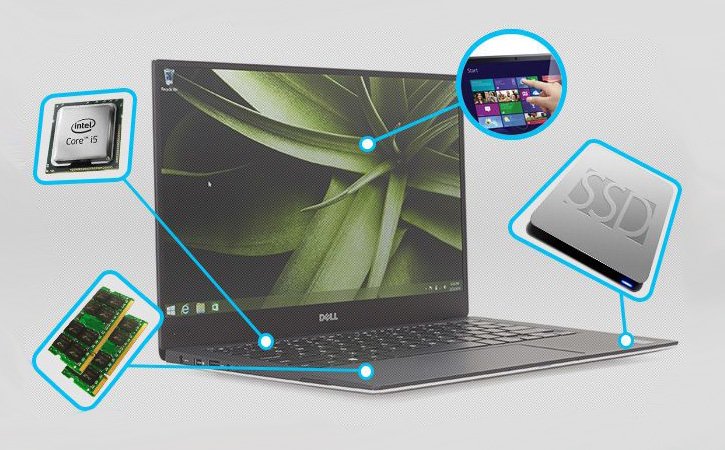
Buying a new computer is a feeling like no other. You bring the box home, peel off the plastic, and open the lid to see that pristine, smudge-free screen. It represents endless possibilities. You imagine all the work you will get done, the games you will play, and the movies you will watch. But before you can do any of that, there is a hurdle to cross. The setup process. For many people, configuring a new computer or laptop feels like a chore. You are bombarded with questions about accounts, privacy, updates, and cloud storage. It is tempting to just click “Next” as fast as possible to get to the desktop.
However, the way you configure your machine in those first few hours determines how it will behave for the next few years. A poorly configured computer is full of annoying pop-ups, runs slower than it should, and might even be a security risk. On the other hand, a computer that is set up correctly is a joy to use. It is fast, quiet, secure, and personalized exactly to your needs. In 2026, operating systems like Windows and macOS are smarter than ever, but they still need your guidance to work perfectly. This guide is going to walk you through the essential steps of computer configuration. We will skip the jargon and use simple, plain English to help you build a machine that works for you, not against you.
1. The First Boot: Getting Through the Initial Setup Screens
When you press the power button for the first time, you enter what tech companies call the “Out of Box Experience.” This is a series of blue or white screens asking you for basic information. The first few are easy: pick your language, your region, and your keyboard layout. But then it gets tricky. You will be asked to connect to Wi-Fi. Do this immediately. Connecting to the internet allows the computer to check for critical updates right away, ensuring that when you finally reach the desktop, you are safe from the latest viruses.
The biggest decision you will face here is creating a user account. In the past, you could just type a name like “Owner” and be done. Today, Microsoft and Apple strongly push you to sign in with an online account (a Microsoft Account or an Apple ID). I highly recommend doing this. While it might feel annoying to remember another password, using an online account gives you massive benefits. It automatically backs up your settings, your wallpaper, and even your Wi-Fi passwords to the cloud. If you lose your laptop next year and buy a new one, signing in with the same account will restore everything instantly. It acts as a safety net for your digital life. You will also be asked about privacy settings. My advice is to turn off “Advertising ID” and “Tailored Experiences,” but leave “Location” on if you want your weather app and “Find My Device” to work properly.
2. The Great Bloatware Purge: Cleaning Up the Junk
Here is the dirty secret of the computer industry: manufacturers like HP, Dell, and Lenovo get paid to install junk on your new computer. When you finally reach your desktop, take a look at the Start Menu. You will likely see icons for a random antivirus you didn’t buy, a few cheap games like “Solitaire Collection,” and trial versions of software you don’t need. This is called “Bloatware,” and it is the enemy of performance. These programs run in the background, eating up your battery life and slowing down your processor before you have even opened a web browser.
Your first job is to be a digital janitor. Go to Settings > Apps > Installed Apps. Scroll through the list slowly. If you see “McAfee” or “Norton” trial versions, uninstall them immediately. Windows has excellent built-in security called Windows Defender, so you don’t need heavy third-party software slowing you down. If you see random games or “Support Assistants” that you know you won’t use, get rid of them. Be ruthless. A clean computer is a fast computer. If you aren’t sure what a program does, a quick Google search will tell you if it is safe to remove. Clearing out this junk right now frees up storage space and ensures your computer runs as fast as possible from day one.
3. Running Updates: The Boring But Essential Step
You might think your new computer is up to date because you just took it out of the box, but that is rarely true. That laptop was likely manufactured three or four months ago and sat in a shipping container or a warehouse. In those months, hundreds of security holes were found and fixed, and new features were released. If you start using the computer without updating, you are vulnerable to hackers and bugs.
Go to Settings > Windows Update (or System Settings > General > Software Update on a Mac) and click the big “Check for Updates” button. It will likely find a long list of things to install. Let it do its work. It might take twenty minutes or even an hour. You will probably have to restart the computer, go back to settings, and check again. Do this repeatedly until it says, “You are up to date.”
Don’t forget to update the apps themselves. On Windows, open the Microsoft Store app, go to the Library, and click “Get Updates.” This updates the Calculator, the Mail app, and other core tools. If you are a gamer, this is also the time to download the official software for your graphics card (NVIDIA or AMD). Do not rely on Windows for this; go to the manufacturer’s website and get the latest “Game Ready” driver. This ensures your games run smoothly and your screen looks crisp. It is boring work, but think of it as laying a solid foundation for a house. If the foundation is strong, the house will stand for years.
4. Installing Your Software Stack: The Smart Way
Now that the system is clean and updated, it is time to make it yours. You need to install the tools you actually use—Chrome, Zoom, Spotify, Discord, VLC, and whatever else you need for work or school. In the old days, this meant going to twenty different websites, dodging fake download buttons, and running twenty different installers. In 2026, there is a much better way.
Use a bulk installer website like Ninite. You go to the site, check the boxes for the free apps you want, and it gives you one single small installer file. You run that one file, and it automatically downloads and installs everything in the background. It automatically says “No” to any toolbars or junk software those apps try to sneak in. It installs them to the default location and keeps them updated. It saves hours of time and ensures you are getting the official, safe versions of every app.
If you are setting up a Mac, you can just drag and drop apps from the App Store, which is incredibly safe. For paid software like Microsoft Office or Adobe Creative Cloud, log into your account on their website and download the official installer. Never download “cracked” or pirated software on a new machine. It is the fastest way to infect your clean system with malware. Stick to official sources and bulk installers to keep your system pristine.
5. Security and Privacy: Locking Down Your Digital Life
We touched on this during the first boot, but now we need to dig deeper. Security is non-negotiable. The good news is that modern operating systems are very secure out of the box, but you can make them better. Open Windows Security (or System Settings on Mac) and ensure “Virus & threat protection” is turned on.
The most important security tool you can install is a Password Manager. If you don’t have one, start now. Tools like Bitwarden or 1Password are essential. Install the browser extension. This allows you to create strong, complex passwords for every website and save them securely. Do not use the same password for your email and your bank. If one site gets hacked, you lose everything. A password manager remembers them all for you, so you only have to remember one master password.
Next, check your privacy permissions. Go to Settings > Privacy & security. Look at the list of permissions like Camera, Microphone, and Location. Does your Calculator app need access to your Location? No. Does your Weather app need access to your Microphone? Definitely not. Turn off the permissions that don’t make sense. Also, look for “Ad tracking” or “Advertising ID” settings and turn them off. This stops companies from building a profile of you based on what you click. Taking ten minutes to lock these doors now will protect your identity for the life of the computer.
6. Setting Up a Bulletproof Backup Strategy
The most tragic thing that can happen to a computer user is losing their data. Hard drives fail. Laptops get dropped. Ransomware happens. If your files only exist in one place, they are waiting to be lost. You must set up a backup system immediately.
The easiest method is Cloud Backup. If you signed in with a Microsoft or Apple account, you probably have some free storage in OneDrive or iCloud. Turn on the “Desktop and Documents Sync.” This means that anything you save to your desktop or your documents folder is automatically uploaded to the cloud. If you pour coffee on your laptop tomorrow, your files are safe on the internet. You can log into any other computer and see them instantly.
However, the cloud isn’t enough. You should also follow the “3-2-1 Rule.” Have three copies of your data, on two different types of media, with one offsite. Buy an inexpensive external USB hard drive. Plug it in and set up “File History” (Windows) or “Time Machine” (Mac). These tools automatically back up your files every hour when the drive is plugged in. It happens in the background. You don’t have to remember to do it. If you accidentally delete a file, you can “go back in time” and retrieve it. This dual approach—Cloud for convenience, Local Drive for speed—makes you invincible against data loss.
7. Personalization: Making the Computer Feel Like Home
Now that the boring technical stuff is done, you can have some fun. Customizing your computer makes it more enjoyable to use. Start with the “Dark Mode” setting. Most people find Dark Mode easier on the eyes, especially if you work late at night. Go to Settings > Personalization > Colors and choose your mode.
Change your wallpaper to something that makes you happy. A picture of your family, your pet, or a favorite landscape. Organize your Start Menu or Dock. Unpin the icons you don’t use (like the Edge browser if you use Chrome) and pin the ones you do use (like Word or Spotify). This saves you seconds every time you look for an app.
You should also adjust the “Scale and Layout.” In Display Settings, you can change the size of the text. On modern high-resolution screens (like 4K monitors), the text can sometimes look tiny. Bump the scale up to 125% or 150% so you don’t have to squint. Also, configure “Night Light” or “Night Shift.” This feature turns the screen slightly orange in the evening to reduce blue light. It mimics the setting sun and helps your brain realize it is time to sleep, preventing eye strain if you are using the computer before bed.
8. Optimizing for Performance and Battery Life
If you have a laptop, you want it to last all day. Windows has “Power Modes” that control this. Click the battery icon in your taskbar. You will usually see a slider or a menu. When you are plugged into the wall, set it to “Best Performance.” This lets the processor run at full speed for gaming or heavy work. When you are on battery, set it to “Balanced” or “Best Power Efficiency.”
You should also check your “Startup Apps” again (we mentioned this in the bloatware section, but it is worth a double-check). Open Task Manager and go to the Startup tab. Disable anything that you don’t need immediately. Does Spotify need to open the second you turn on the computer? Probably not. Disable it. This makes your boot time lightning fast.
Another pro tip is to use “Storage Sense.” Go to System > Storage and turn it on. Configure it to automatically delete files in your Recycle Bin and Downloads folder every 30 days. This prevents your hard drive from getting clogged up with junk over time. It keeps the computer running as fast as it did on day one without you ever having to manually delete files.
9. Creating a Restore Point: Your Safety Net
Before you start using your computer heavily, you should create a “System Restore Point.” This is like a save game for your computer. It takes a snapshot of your system files exactly as they are right now—clean, updated, and working perfectly.
Search for “Create a restore point” in the Start Menu. Click the “Create” button and name it “Fresh Install.” If you install a bad driver next month, or if a virus messes up your settings, you can use this restore point to travel back in time to today. It undoes the damage without deleting your personal files. It is a five-minute step that can save you hours of troubleshooting later.
10. Final Maintenance Routine: Keeping It Fresh
Congratulations. Your computer is now set up perfectly. It is clean, secure, backed up, and personalized. But just like a car, it needs maintenance to stay this way. You don’t want to do all this work just to let it rot in six months.
Set a recurring reminder in your calendar for once a month. Call it “PC Health Check.” On that day, do three simple things. First, check for updates again (Windows and Apps). Second, run a quick virus scan just to be safe. Third, restart your computer. Many people just close the lid and let the computer “sleep” for weeks. A full restart flushes the memory and fixes tiny glitches that build up over time.
Also, physically clean it. Buy a can of compressed air and blow the dust out of the keyboard and the vents. Dust is the enemy of electronics; it traps heat and kills batteries. Wipe the screen with a microfiber cloth (no harsh chemicals!). By spending fifteen minutes once a month on maintenance, you can extend the life of your computer by years. You have built a powerful, efficient machine. Now, go enjoy using it to create, play, and connect with the world.